
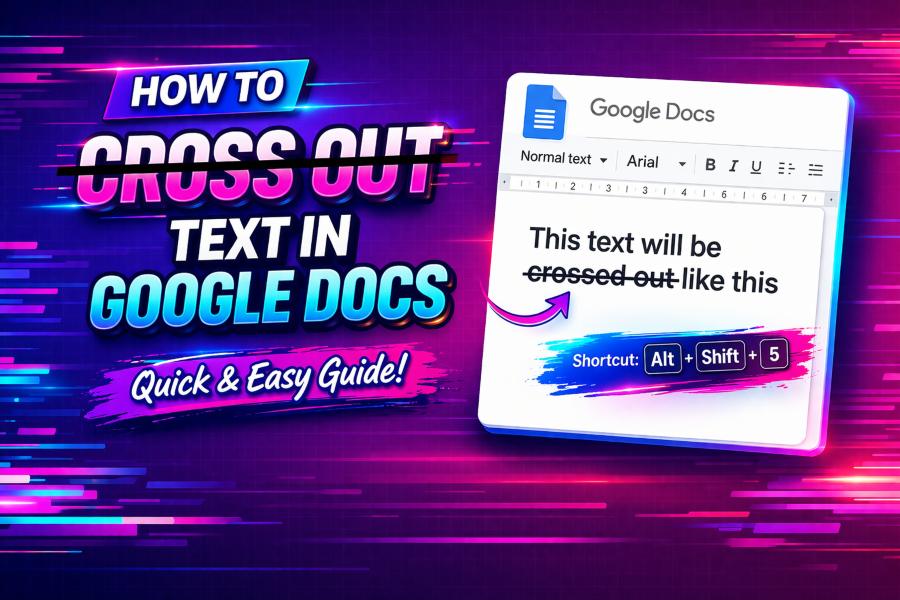
Google Docs is a powerful tool for creating and editing documents, and one feature that can significantly enhance your workflow is strikethrough text. Strikethrough allows you to cross out text, indicating that it is no longer relevant, while keeping it visible.
Whether you’re marking off completed tasks, tracking changes, or indicating outdated information, this feature can keep your document organized and easy to read. In this guide, you’ll learn how to apply strikethrough in Google Docs using both keyboard shortcuts and the format menu, ensuring you can use this feature effectively in your documents.
By the end of this article, you’ll be able to cross out text seamlessly in Google Docs, improving your ability to manage revisions and track progress in collaborative projects. Let’s explore the best ways to use strikethrough in Google Docs.
What is Strikethrough in Google Docs?
Strikethrough is a text formatting tool that places a line through the middle of the selected text, indicating that it is no longer needed or relevant. It’s a perfect solution for situations where you want to highlight deleted or outdated text but still keep it visible for reference. Whether you’re marking off completed tasks, showing a revision, or organizing a to-do list, strikethrough keeps your document tidy while showing exactly what’s changed.
This tool is useful for a wide range of tasks. When you collaborate with others, it’s a great way to visually communicate edits without permanently deleting text. Let’s see how you can start using strikethrough in your documents.
How to Apply Strikethrough Using Keyboard Shortcuts
For those who prefer speed and efficiency, Google Docs allows you to apply strikethrough using keyboard shortcuts. This method is quick and easy, making it ideal for frequent edits. Here’s how to do it:
- On Windows: Press Alt + Shift + 5 to strike through the selected text.
- On Mac: Press ⌘ + Shift + X to cross out the text.
Once you have selected the text, press the appropriate shortcut, and the strikethrough will be applied immediately. This shortcut is a great way to quickly mark off text without needing to navigate through menus.
For more creative text options, you can try other formatting techniques, such as the free Glitch Text Generator, which adds fun effects to your text.
How to Strikethrough Text Using the Format Menu
If you prefer using a menu instead of keyboard shortcuts, you can also apply strikethrough through the format menu in Google Docs. This method is simple and intuitive, especially for those who may not be familiar with keyboard shortcuts. Here’s how to do it:
- Select the text you want to cross out.
- Go to the Format menu at the top of the screen.
- Hover over the Text option in the dropdown.
- Select Strikethrough from the list.
This option is ideal for users who are more comfortable navigating through the toolbar. It’s also an excellent option if you are working with a mouse and prefer to avoid using keyboard shortcuts.
Strikethrough on Google Docs Mobile App
In addition to desktop versions, the Google Docs mobile app also supports strikethrough. Here’s how you can apply it on Android or iOS devices:
- Open the Google Docs app.
- Select the text you want to strike through.
- Tap the Format button (the “A” icon with a pencil).
- Choose Text, then tap Strikethrough.
This method ensures you can maintain your formatting even when working from your mobile device, whether you’re reviewing or editing documents on the go.
Using Strikethrough for Task Lists and Project Management
One of the most popular uses of strikethrough is for managing task lists and projects. Strikethrough makes it easy to mark off completed tasks while keeping the list intact. Here’s how to use it in a to-do list:
- Create a list of tasks in Google Docs.
- As you complete tasks, apply strikethrough to mark them off.
This method is highly effective for tracking progress. It allows you to see which tasks have been completed and which ones are still pending, making your workflow more organized and efficient.
Undoing Strikethrough in Google Docs
If you’ve applied strikethrough by mistake or simply want to remove it, the process is just as simple. You can easily undo strikethrough using the following methods:
- Using keyboard shortcuts: Press the same keyboard shortcut you used to apply strikethrough (Alt + Shift + 5 for Windows or ⌘ + Shift + X for Mac) to toggle it off.
- Using the format menu: Highlight the text again, go to the Format menu, hover over Text, and click Strikethrough to remove it.
This flexibility ensures that you can quickly modify your document if you change your mind or make an error.
Strikethrough for Collaborative Document Editing
Strikethrough is especially valuable in collaborative settings. If you’re working on a shared document, using strikethrough allows you to track changes while keeping the original content visible. Here’s how strikethrough works in a collaborative context:
- Track changes: Use strikethrough to mark content that has been revised or deleted, while still allowing others to review it.
- Collaborative editing: Team members can strike through outdated or irrelevant text, making it easier to keep the document updated.
By using strikethrough, you maintain transparency in the editing process. Everyone can see what’s been changed, while the original content remains accessible for reference.
If you want to troubleshoot other issues with Google Docs, like text glitches, you can explore guides such as why is my computer glitchy for more helpful advice.
Strikethrough for Revision Control
When working on drafts, strikethrough can be a great way to mark sections that need revision. By using strikethrough to indicate changes, you can visually track your progress and ensure that you don’t lose any important details. This approach is particularly useful in content creation, where multiple rounds of edits are common.
Here’s how you can use strikethrough to manage revisions:
- Highlight revised text: Apply strikethrough to show what needs to be rewritten or updated.
- Make changes easily: Strikethrough provides a clear record of your edits, so you can always revisit the original text if needed.
By using strikethrough in this way, you can create a more organized and efficient editing process, ensuring that all changes are clearly documented.
Troubleshooting Strikethrough Issues in Google Docs
Sometimes, you may encounter issues with the strikethrough tool in Google Docs, such as it not appearing in the format menu or shortcuts not working. Here are some common solutions:
- Clear the browser cache: Clearing your browser’s cache can help resolve display issues.
- Check your internet connection: A slow or unstable connection might cause Google Docs to malfunction.
- Update the app or browser: Make sure your app or browser is up to date to avoid bugs.
- Try a different browser: If the issue persists, try using a different browser.
By following these troubleshooting steps, you can quickly resolve any problems and get back to editing your document.
For more guidance on fixing tech issues, you can learn about why Word is lagging when typing.
Advanced Text Formatting with Strikethrough
Although Google Docs doesn’t offer extensive customization for strikethrough, you can combine it with other formatting features for more advanced effects. For example, you can apply strikethrough along with bold or italic formatting for emphasis. You can also change the font color or background to make the strikethrough more visible, depending on the context.
Combining strikethrough with other text formatting tools gives you more control over how your edits appear. Whether you’re presenting a document or reviewing content, these advanced techniques ensure that your changes stand out.
Conclusion
Strikethrough is an essential tool in Google Docs for anyone looking to track changes, manage tasks, or highlight revisions. It’s simple to use, whether you prefer keyboard shortcuts, the format menu, or the mobile app. By applying strikethrough effectively, you can keep your documents organized and make your editing process more efficient. For further text formatting tools, consider exploring options like the free Glitch Text Generator, which can add additional flair to your documents.